Immersion Compressor/Limiter 11FF
Compressor/Limiter 11FF was developed in collaboration with NICHOLAY MIX. Most of us are musicians and/or sound engineers. We love the recording process and get truly inspired when tracks turn out great. When developing 11FF, we aimed to create a compressor/limiter that we would enjoy using ourselves — one that would evoke the delight that comes with listening to music recorded in its most natural, inspired form.
We carefully compared the original hardware and our emulation to ensure the 11FF plug-in is sonically indistinguishable from its physical counterpart.
It’s designed for fast and efficient work with mid and side channels, stereo sound and objects, as well as with boxes (fixed channels) in immersive mixing studios.
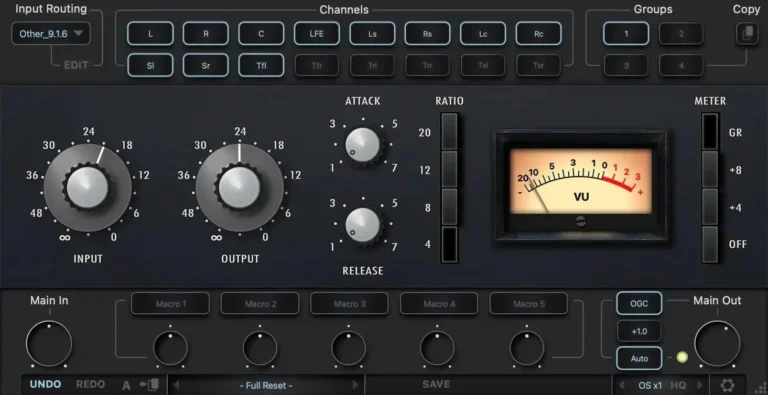
INPUT ROUTING PANEL
Groups
This module allows you to select one of four available compressors. Compressors are connected in series, allowing channels to be processed with different compressor settings.
For example, the first limiter processes only the center channel, the second only the side channels, and the third both the left and right channels. In multichannel modes, the first limiter processes only the left and right channels, the second only the center channel, the third only the LFE channel, and so on.
For ease of use, you can rename channel group buttons. To rename a selected channel group button, right-click it.
To solo the compressor, double-click the selected channel group number.
Single-channel mode is highlighted in yellow within a channel group. To exit single-channel mode, double-click the screen. In dual-channel mode, only one device can operate in single-channel mode. In multi-channel mode, one or more devices can operate in single-channel mode.
To disable the selected compressor processing, press the button with the selected channel group number once + Shift. When disabled, the button will glow red.
You can also copy all compressor settings to another channel group. To do this, select the channel group you want to copy the settings from, click the “Copy” button, and then select the channel group you want to copy the settings to.
Input Routing
The input routing feature allows you to choose from 44 common channel configurations, from stereo to 7.1.4 and 9.1.6. Simply select the channel configuration that suits your composition in the input routing module.
You can also create your own routing profiles. 16 independent channels are available.
Click the “Edit” button next to the input routing selection field. Hold down the Shift key and select the desired number of channels. Name the selected channels in the order they appear. Then click “Save” and name the profile.
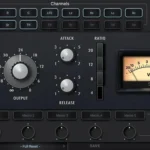
Channels
In this module you can select (activate) the channels that the compressor will process in the selected channel group.
COMPRESSOR SECTION
Input Data
- The Input knob controls the attenuation of the input level.
- Thus, higher settings will apply more limiting or compression.
- The valid range is from -Inf to 0.
Output Signal
- The Output knob adjusts the output level attenuation.
- After the desired limiting or compression is achieved with the Input knob, the Output knob can be used to compensate for the loss of gain due to gain reduction.
- The valid range is from -Inf to 0.
Attack
- Adjusts the attack time of the compression.
- Attack time is at its minimum when the Attack knob is turned fully clockwise, and
- Available range: 1 (slowest) to 7 (fastest).
Release
- Adjusts the compression release time.
- The compression release time is shortest when the compression release adjuster is in the fully clockwise position.
- Available range: 1 (slowest) to 7 (fastest).
Ratio
The Ratio buttons allow you to select one of four operating modes:
- 4 – 4:1 compression ratio (moderate compression).
- 8 – 8:1 compression ratio (strong compression).
- 12 – 12:1 compression ratio (soft limiting).
- 20 – 20:1 compression ratio (hard limiting).
Meter
Switches between “Gain Reduction”, “Output +8”, “Output +4”, “Off” modes.
LOWER SETTINGS PANEL
Global Input Gain
The Main Input Gain control controls the overall input level of the plug-in to all channel groups.
Macro Controller
In the studio, when working with hardware devices, we often use both hands to turn knobs. This is difficult to do on a computer, so we tried to implement something similar with the Combo knob.
For convenience and speed of work, you can bind several parameters to one macro controller.
For example: link the “Threshold” parameter to all four “Channel Groups” (the “Channel Groups” selection is in the upper right corner of the plugin. Learn more about “Channel Groups” selection on page 3) with a single macro controller and control them all simultaneously. Or link two different parameters to a single controller, invert one of them, increase the input gain, and reduce the output ceiling using just one macro controller. There are many possible use cases, just try them out.
To assign parameters to a macro controller, click the “Macro” button.
Note: To rename a macro button, right-click it and enter a new name.
When the “Macro” button is clicked, additional parameters for the controllers that can be controlled appear.
Select the parameter you want to control. It has four knobs, which correspond to the “channel groups” numbers (channel groups are located in the upper right corner of the plugin. Learn more about channel groups on page 3). Select the desired group. Adjust the sensitivity of the parameter control: on the right is a positive value (blue), on the left is a negative value (red). To return the knob to the 0 position, double-click. To return the knob to the 0 position again, double-click the left mouse button.
GM (Gambling Match)
To activate the Gain Matching mode, press the GM button.
Below is a compensation indicator, which will show the difference in levels after a short time. Click it to compensate.
Automatic Mode
Click the “AUTO” button to enable it. If the gain difference exceeds the “acceptable gain value,” the AUTO indicator turns yellow, and the plugin begins actively adjusting the gain (you’ll see the knob slowly rotating).
To change the OGC mode settings, go to the “Global Settings” section.
Global
Output Gain Main Output Gain The Main Output Gain adjusts the overall output level of the plug-in after all channel groups.
Undo / Redo
The undo and redo functions allow you to cancel or redo changes made to the plugin’s settings.
A/B
The A/B buttons allow you to load two independent settings and quickly compare them.
Preset Display
Factory presets are included in the plugin installation package and can be found at the following locations:
- Mac: Users\[username]\Music\Red Rock Sound\RRS 11FF\Patches
- Windows: C:\Users\[username]\Documents\Red Rock Sound\RRS 11FF
You can save the current Comp settings as a default preset. – Full reset – used by default
Load
The Load button allows you to load presets that are not stored in the locations described above.
Save
The Save button allows you to save your custom settings.
- Download Red Rock Sound – 11FF v1.0.0- VST, VST3, AAX x64 [02/19/2026](SEnki)
- Original Publisher: Red Rock Sound
- Version: v1.0.0
- Format: VST, VST3, AAX
- Category: VST Plugins
- Require: Windows 7+
- License type: Full
- Download Size: 6 MB